


Key takeaways
- The IRS accepts digital receipts as valid records, so you don't need to keep paper originals.
- Scanning receipts by category (not just date) is what actually makes tax time faster.
- OCR technology in phone apps can extract merchant, date, and amount automatically, with no manual entry required.
- The best time to file a receipt is the day you get it, not three months before your return is due.
- A folder structure with seven to ten categories covers most people's tax situations.
If you've ever spent a February afternoon digging through a stack of crumpled receipts from the back of a drawer, you know the feeling. Organizing digital receipts for taxes is one of those tasks that takes almost no effort if you do it continuously, but turns into a genuine problem if you wait. The goal of this guide is to give you a system that keeps the work under five minutes per week, year-round.
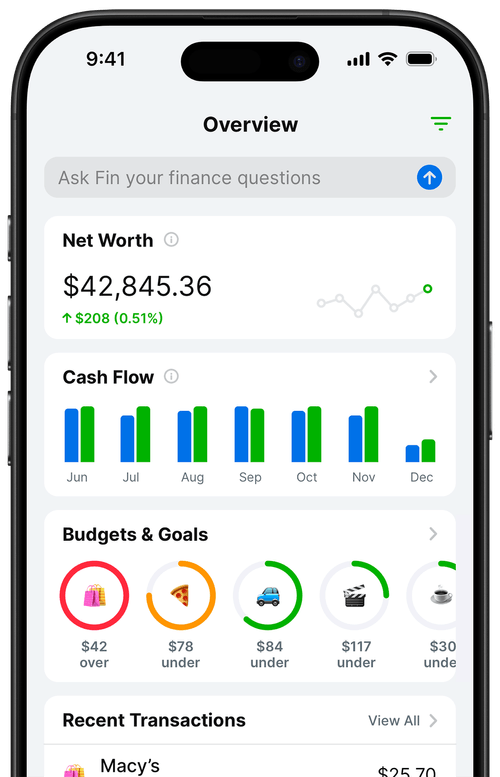
I built a personal finance app, so I think about this kind of friction constantly. Most people don't fail at receipt management because they're disorganized. They fail because the system they're using requires too much effort at the wrong time.
Why do digital receipts make tax prep easier?
Paper receipts have a short shelf life. Thermal paper, which most retail receipts are printed on, starts fading within a year. By the time the IRS might ask to see a receipt from two years ago, the ink has often turned to a pale gray smear. Digital copies don't fade, don't get crumpled in a coat pocket, and can be retrieved from anywhere.
The more practical reason to go digital is searchability. A scanned receipt can be tagged, renamed, and sorted by category with a few taps. A paper receipt sitting in a filing cabinet requires you to remember roughly when you made the purchase, open the cabinet, and flip through until you find it. If you've got 200 receipts in a year, that's a meaningful time difference.
There's also the backup argument. A fire, a flood, or even a spilled coffee can take out a year's worth of paper records overnight. Cloud-stored digital receipts survive those scenarios automatically.
What does the IRS actually accept for digital receipts?
The short answer is: digital receipts are fully valid. Revenue Procedure 98-25 established that the IRS treats electronic records the same as paper originals, provided the digital copy is accurate, legible, and retrievable on request. A photo taken on your phone counts. A PDF emailed by a retailer counts. A screenshot of an order confirmation counts.
What matters is that the image clearly shows the date, the vendor name, a description of what was purchased, and the amount paid. If any of those details are cut off or blurred, the receipt loses its value as documentation. When you're photographing a paper receipt, take the picture in decent light and make sure all four corners are in frame.
For business meal deductions, the IRS also wants a note about the business purpose and who attended. That detail won't be on the receipt itself, so add a quick note in whatever system you're using before you forget.
How do you scan receipts with your phone?
The most common approach is to use the camera on your phone and save the image to a dedicated folder. That works, but a better approach is to use an app with OCR built in. OCR, which stands for optical character recognition, reads the text in the image and pulls out the merchant name, the transaction date, and the total. You end up with a tagged, searchable record instead of a pile of unnamed image files.
The workflow I'd recommend is this: when you get a paper receipt, photograph it before you leave the register or the restaurant. Don't put it in your pocket with the intention of scanning it later. That "later" moment has a way of never arriving. For email receipts, forward them to a designated folder immediately, or set up a filter that routes them there automatically.
A few practical tips for getting clean scans:
- Lay the receipt flat on a dark surface so the edges are easy to detect.
- Make sure the entire receipt fits in the frame, including the top and bottom totals.
- Avoid scanning in direct sunlight, which creates harsh shadows and washed-out areas.
- If the receipt is long and thin, capture it in landscape mode so the text is larger relative to the frame.
If the receipt is a digital one, such as an emailed confirmation or a PDF from an online order, you don't need to photograph anything. Save it directly to your organized folder and tag it with the appropriate category. The key habit in either case is handling it once and filing it immediately.
How should you organize digital receipts by category?
Date-based organization is the default, and it's the wrong default for taxes. Sorting everything into folders by month tells you when you spent money, but it doesn't tell you what kind of expense it was. At tax time, you need to know your total for each deductible category, and that means you need category-based organization from the start.
The categories you use should match the way your taxes are structured. For most self-employed people, that means something like: home office, vehicle and mileage, travel, meals and entertainment, software and subscriptions, equipment, education and training, and professional services. If you're tracking personal expenses as well, add categories like groceries, utilities, and medical.
The goal isn't to have a perfect taxonomy. The goal is to have a structure consistent enough that you don't have to make a new organizational decision every time you file a receipt. Once you decide that "Notion subscription" goes in "Software and Subscriptions," that decision is made. Every future software receipt goes in the same place without a second thought.
One decision worth making early: do you want to sort by year first, or by category first? Either works, but year-first tends to be cleaner if you keep records for multiple years. A folder called "2025 / Home Office" is easier to archive than "Home Office / 2025," especially when January comes and you're starting a new year's records.
What folder structure works for most people?
Here's the structure I'd use for a freelancer or self-employed person tracking both business and personal expenses:
| Top-level folder | Subfolder examples |
|---|---|
| 2026 / Business | Home Office, Software & Subscriptions, Equipment, Travel, Meals, Professional Services, Education |
| 2026 / Personal | Medical, Charitable Donations, Childcare, Miscellaneous |
| 2026 / Vehicle | Fuel, Maintenance, Registration, Insurance |
This gives you seven to ten active buckets at any given time, which is about the right number. Fewer categories and you lose specificity. More categories and you start second-guessing where things go, which slows down the filing habit you're trying to build.
When you create a new file, name it with the date and vendor before you save it. A file named 2026-03-14-adobe-creative-cloud.pdf is immediately useful. A file named IMG_3847.jpg is not. This takes two extra seconds and saves you considerable time later when you're looking for a specific expense.
What are the most common receipt-organizing mistakes?
The first and most common mistake is batching. Letting receipts pile up for a week, a month, or a quarter and then sorting them all at once turns a five-minute weekly habit into a two-hour session nobody wants to do. The system works best when filing a receipt takes the same amount of time as the transaction itself, roughly 30 seconds.
The second mistake is using inconsistent category names. If you call something "Office Supplies" in January and "Supplies - Office" in June, you now have two categories that mean the same thing. When you go to total your deductions, you might miss one. Pick a naming convention before you start and stick with it.
The third mistake is forgetting about digital receipts entirely. A lot of people build a decent paper-scanning habit but then let their email inbox become an untagged archive of order confirmations. Email receipts from Amazon, Apple, and your software subscriptions are just as deductible as paper receipts from a hardware store. They deserve the same organizational treatment.
The fourth mistake is keeping originals you no longer need. Once a paper receipt is scanned, verified as legible, and saved to a backed-up location, you can throw the paper away. Holding onto both creates a false sense of security and a real pile of clutter. The digital copy is the record.
The fifth mistake is skipping backup. A folder on your laptop is not a backup. A folder synced to a cloud service, such as iCloud, Google Drive, or Dropbox, is a backup. The IRS may ask for records from up to seven years ago. Make sure your system can actually retrieve them.
Frequently Asked Questions
How long should I keep digital receipts for taxes?
The IRS generally recommends keeping tax-related records for three years from the date you filed your return. For business deductions and self-employment income, plan to keep receipts for at least three to seven years depending on the type of expense. Receipts tied to property or significant assets should be kept for the life of the asset plus seven years.
Does the IRS accept digital receipts?
Yes. The IRS accepts digital receipts as valid records under Revenue Procedure 98-25. A scanned photo, a PDF, or an emailed confirmation is treated the same as the original paper version, as long as it's legible and shows the date, vendor, description, and amount.
What is the best way to organize receipts for taxes?
Organize by tax category first, year second. Sort receipts into folders that match your deduction categories, such as Home Office, Software, Travel, and Meals, and file each receipt immediately rather than letting them accumulate. Consistent naming and immediate filing are more important than having a perfect system.
What information should a receipt include to be valid for taxes?
A valid tax receipt should show the date, vendor name, a description of the item or service, and the amount paid. For business meal deductions, you should also note the business purpose and who attended. If the receipt doesn't include all of these, add a note to the file before you store it.
Can I use my phone to scan receipts for taxes?
Yes. A phone camera is sufficient for capturing a clear, legible image of a receipt. Apps with built-in OCR go further, extracting the merchant name, date, and total automatically so you don't have to type anything. The key is to scan in decent lighting with the full receipt in frame.